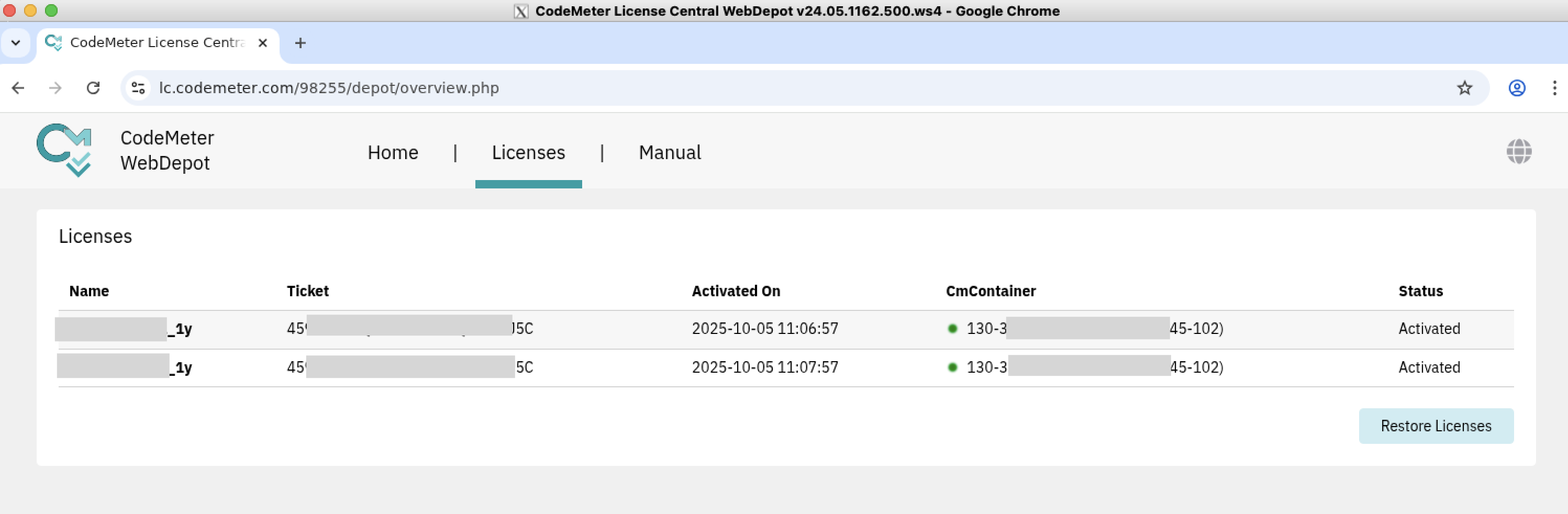
Summary
- Online License Activation with CodeMeter (Ubuntu)
- User Guide: Online License Activation with CodeMeter (Ubuntu)
Online License Activation with CodeMeter (Ubuntu)
User Guide: Online License Activation with CodeMeter (Ubuntu)
1. Introduction
This guide explains how to activate your software license online using CodeMeter on Ubuntu. These steps have been tested on Ubuntu systems without a graphical interface (headless mode).
Audience:
This guide is intended for users installing and activating software licenses on Linux systems
and accessing GUI applications from a Mac via XQuartz (if Ubuntu Server has no GUI).
Prerequisites:
- Access to the internet
- Administrative privileges on Ubuntu Server
- Mac terminal with XQuartz installed (only required if Ubuntu Server has no GUI)
- Software license
2. Install Chromium on Ubuntu Server (Optional)
Note: This step is only required if your Ubuntu Server does not have a browser. If your server already has browser access, you can skip this step.
On Ubuntu
Install chromium
On Client (MacOS)
Install XQuartz and confirm that connection permission.
-
Enable connections from terminal
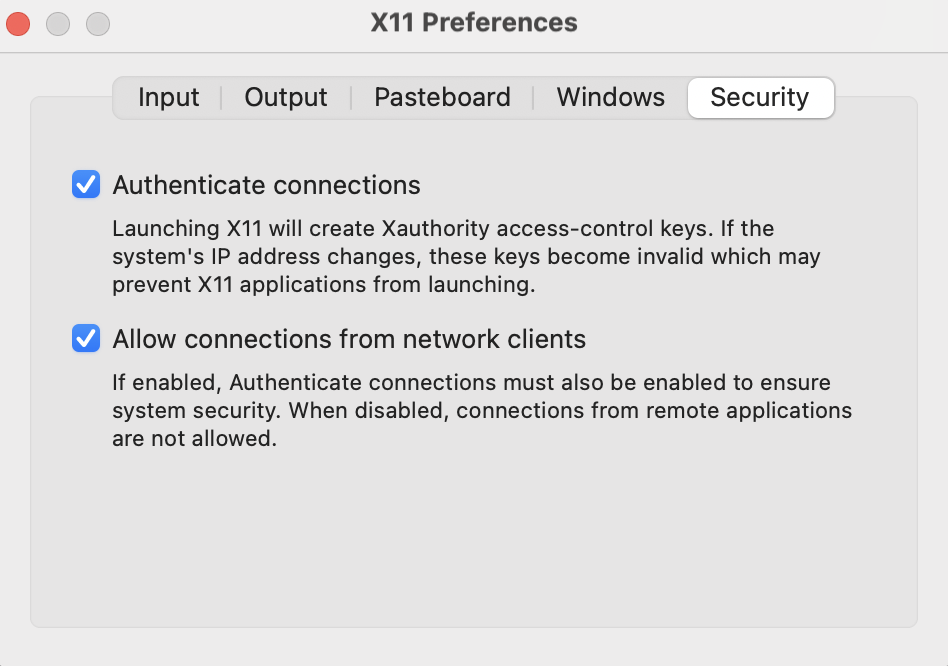
- In XQuartz menu → Settings... → Security
-
Check “Allow connections from network clients”
-
Close Settings
-
Set DISPLAY
-
Enable local X connection
This should succeed without errors. It tells XQuartz to allow connections from local clients (your SSH X11 sessions).
-
SSH to Ubuntu server with trusted X11 forwarding
-Y = trusted X11 forwarding
-C = optional compression
On Ubuntu
-
Launch chromium.
-
Check display
You should see something like localhost:10.0
-
Test XQuartz
You should see a small clock appears which means the XQuartz + DISPLAY is working. If not, XQuartz isn’t running, or you need to quit and restart XQuartz.

-
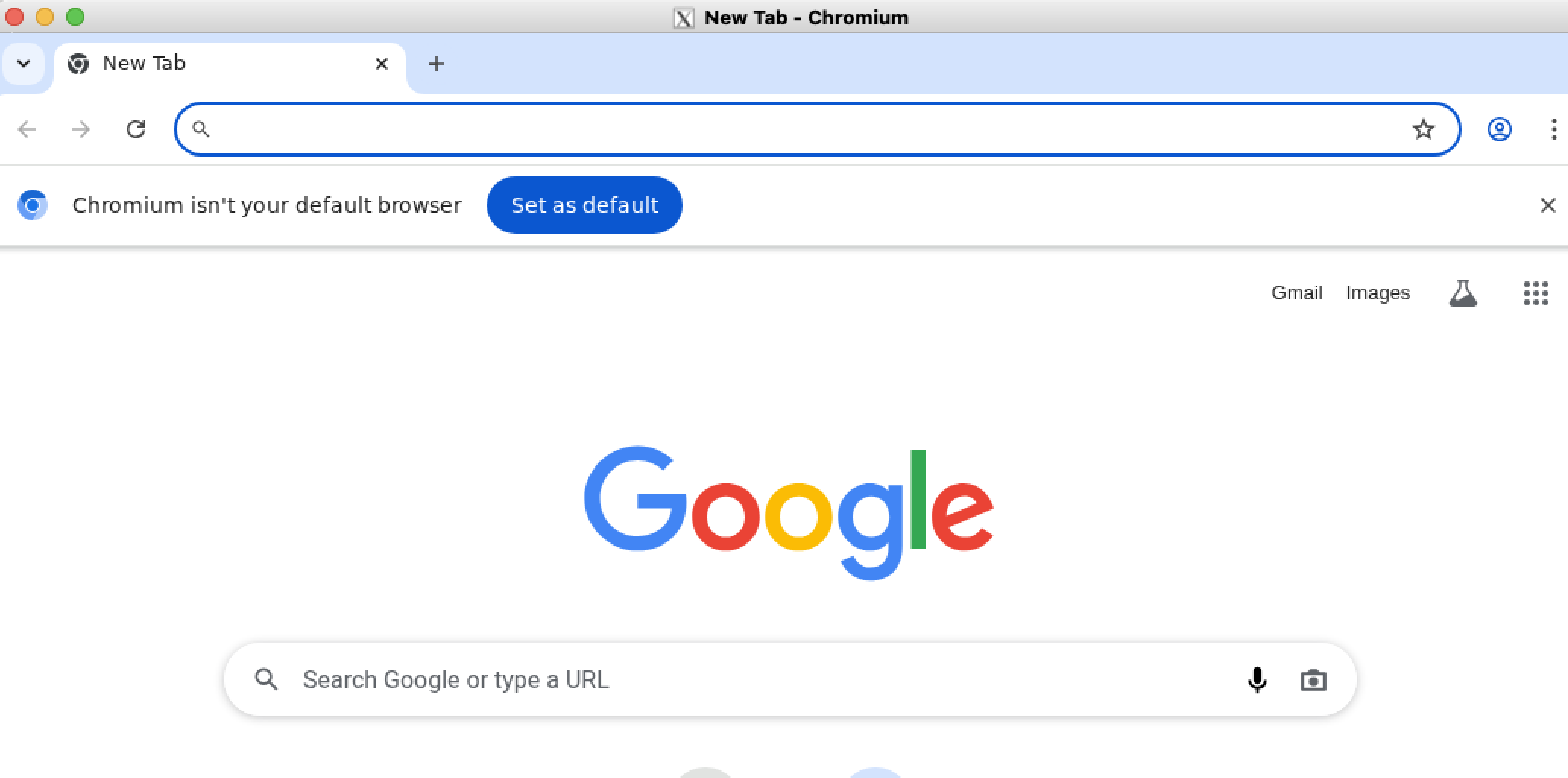
Launch browser
You should see chrome browser on the client.
-
3. Activate license
- Open a browser on your target machine where the SDK is installed.
-
Paste the given license URI
-
Click on Manual tab for license registration guideline
- Once the registeration has done. The license status is changed to 'Activated'